Still don't get Twitter? More and more this micro-blogging network is becoming a very useful tool for finding out what's going on with the people and things that matter to you the most. With our simple and engaging tutorial, you can learn all the various ways you can use Twitter to enhance your own life.
Tuesday, September 11, 2012
Facebook 101
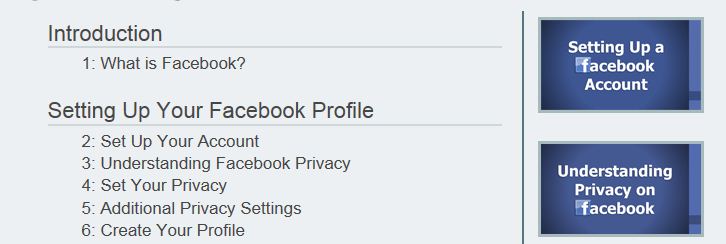
This is a great tutorial from GCF. It was created to get you up to speed on how to create, use, and maintain a Facebook page of your own, including understanding the complex Facebook privacy policies and settings.
http://www.gcflearnfree.org/facebook101
Friday, July 27, 2012
Finding Instructions for Using USB Cord with Kindle
Natalie provided this information on getting to instructions for using the Kindle with a USB cord (necessary with Penguin titles in Overdrive).
Tuesday, July 24, 2012
Calculator accessory
If you ever need to do some quick math and need a calculator, look no further than the accessories menu on your computer.
You can use calculator to perform simple calculations such as addition, subtraction, multiplication, and division. Calculator also offers the advanced capabilities of a programming, scientific, and statistical calculator.
You can perform calculations by clicking the calculator buttons, or you can type calculations by using your keyboard. You can also use the numeric keypad to type numbers and operators by pressing Num Lock.
Friday, July 20, 2012
Using Task Manager to Shutdown Applications
Windows: End Task on the Task Manager
To close a program that's frozen on Windows:- Press Ctrl+Shift+Esc to directly open the Task Manager.
- In the Applications tab, click on the program that's not responding (the status will say "Not Responding") and then click the End Task button.
- In the new dialog box that appears, click End Task to close the application.
These instructions were found on LifeHacker.com. If you've never used the Task Manager to close applications before, I would recommend opening a few programs (Word, Internet Explorer, etc) and try closing them using Task Manager. Don't forget that this feature is often helpful when a program has frozen and will not let you close it down in the regular fashion.
Downloading Device-Compatible Books from Project Gutenberg
When using a site with a variety of ebook titles, like Project Gutenberg, one of the most important things to pay attention to is the file type. File types are the indicator of what devices each file will work with. Choose file types that you know are compatible with the device you want to use.
Find information on using Project Gutenberg titles with various devices on the Project Gutenberg website.
This is a great topic to try out yourself with a device. There are a variety of options: you might try it out on LT's Kindle (located in the sups' office), request a device from HI, try it out on your own device, or coordinate with a helpful coworker to try it on their device.
Find information on using Project Gutenberg titles with various devices on the Project Gutenberg website.
This is a great topic to try out yourself with a device. There are a variety of options: you might try it out on LT's Kindle (located in the sups' office), request a device from HI, try it out on your own device, or coordinate with a helpful coworker to try it on their device.
Thursday, July 19, 2012
iPad-compatible TumbleBooks
You can use iPad-compatible TumbleBooks by accessing TumbleBooks through the DCL website on your iPad/iPhone and going to the Story Books section.
Just below the "Story Books" heading, there is a link called "Click here for iPad-compatible titles". Click on this link, and the iPad books will be sorted for you. Now, simply click on the "iPad" button to launch the book of your choice! The book will appear in a small window at first, but to expand, simply click on the "full screen" button.
-from http://www.branchdistrictlibrary.org/node/531
Just below the "Story Books" heading, there is a link called "Click here for iPad-compatible titles". Click on this link, and the iPad books will be sorted for you. Now, simply click on the "iPad" button to launch the book of your choice! The book will appear in a small window at first, but to expand, simply click on the "full screen" button.
-from http://www.branchdistrictlibrary.org/node/531
Subscribe to:
Posts (Atom)